
 [code]smith
 Proof
ProofOverview
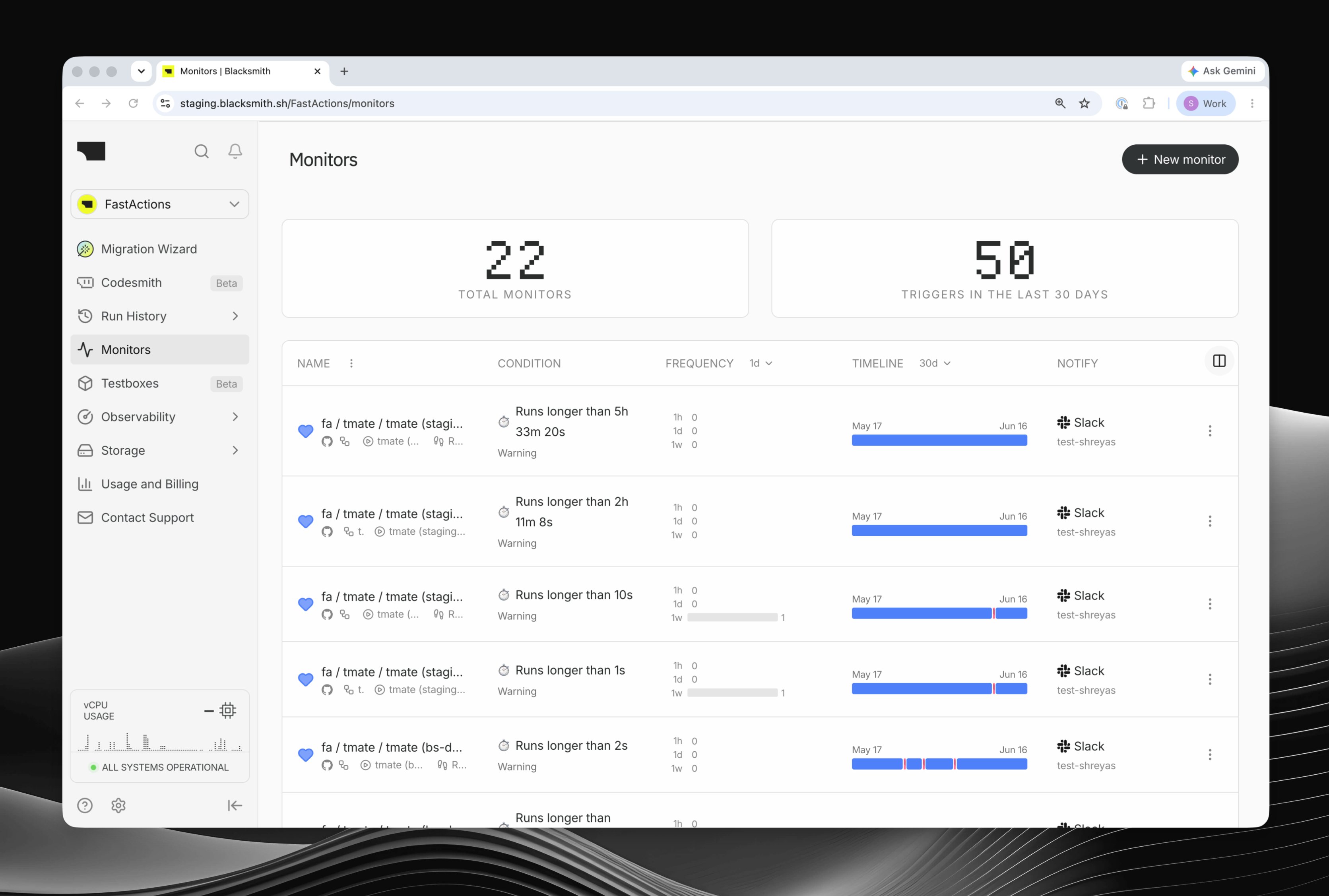
Monitors watch your GitHub Actions workflows and notify your team in Slack when a job fails, a step is skipped, or a run exceeds a duration threshold. Each monitor encodes a rule you would otherwise track manually, such as alerting after three consecutive failures onmain, alerting whenever a specific step is skipped, or alerting when a deploy runs longer than 20 minutes.
You can also enable VM retention, which keeps the runner VM alive when an alert fires so you can SSH in and inspect the failure directly.
To get started, connect your Slack workspace.
Basics
Creating a monitor
Open Monitors in the sidebar and click New Monitor. The wizard walks you through the repository, workflow, job, optional step, alert condition, Slack channels, and review step. A monitor can watch an entire job or a single step. You can also narrow it to specific workflows, branches, or naming patterns when you only care about part of a CI pipeline.Alert condition
Monitors support two main trigger types:- Result - alert after a job or step finishes with a matching result, such as a failure, cancellation, skipped step, or success.
- Duration - alert while a job or step is still running, once it exceeds the threshold you set. Duration monitors are useful for hangs, unexpectedly slow tests, and deploys that should finish within a known window. They can fire even if the run eventually succeeds.
Log pattern filters
For result-based monitors, you can require the logs to match a pattern before an alert fires. This is useful when you only care about a specific error, such asOutOfMemory or SIGKILL, instead of every failure.
Notifications
When a monitor fires, Blacksmith posts a Slack alert with the workflow context and a direct link back to the job or step in GitHub Actions.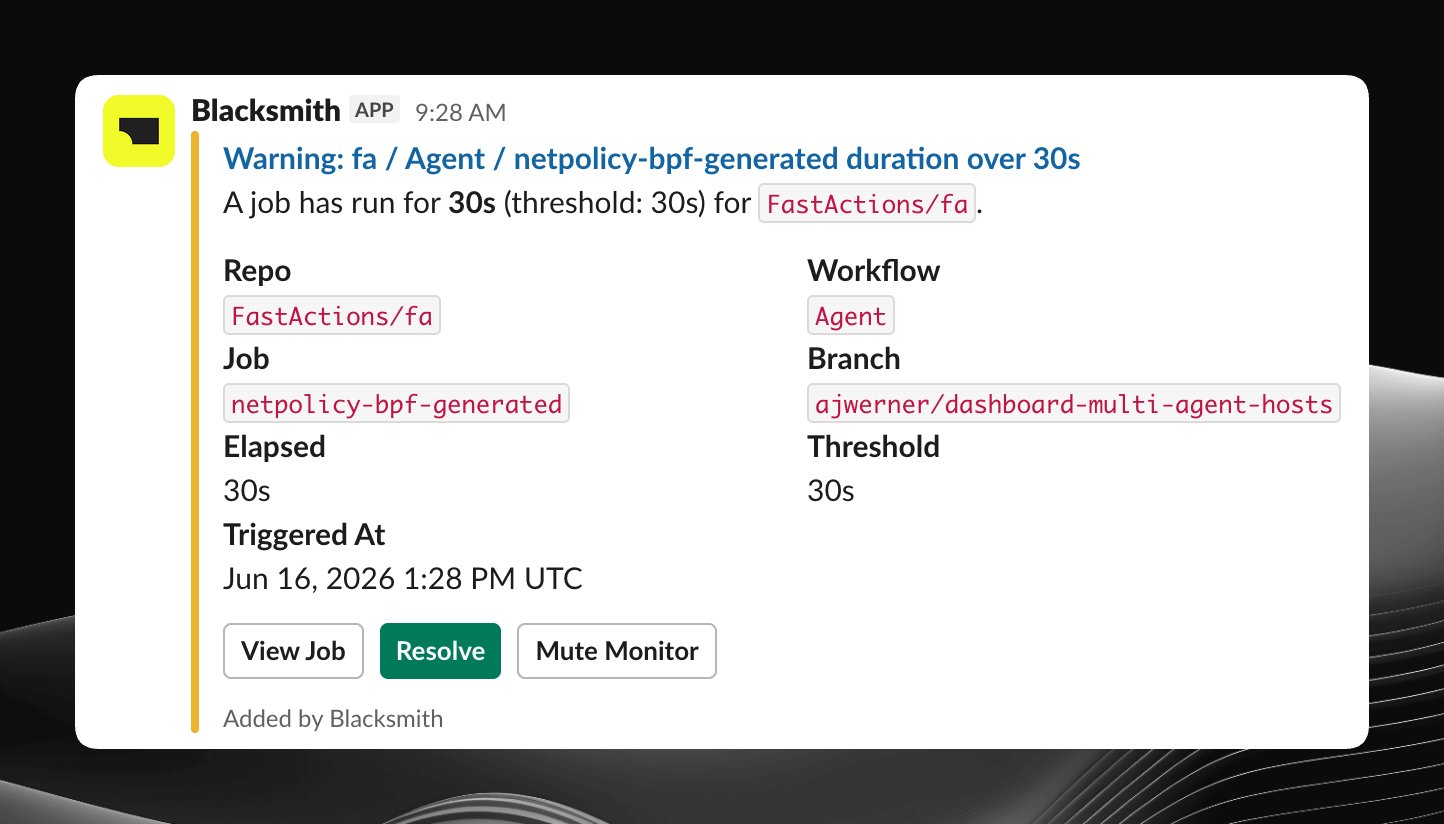
Managing monitors
You can mute a monitor to pause alerts, resolve it to clear the alert state and reset cooldown, or edit its filters, condition, notification channels, and retention settings from the dashboard.VM retention
When an alert fires, a monitor can keep the VM alive so you can SSH in and investigate the failure. This is useful when logs are not enough and you want to inspect the exact environment where the job failed or got stuck. For more on connecting to retained VMs, see SSH Access.FAQ
Can I monitor specific steps within a job?
Can I monitor specific steps within a job?
Yes. Add a step name filter when you create the monitor. Both exact matches and glob patterns such as
Run tests* are supported.Can I alert on jobs or steps that take too long?
Can I alert on jobs or steps that take too long?
Yes. Select Duration as the alert condition and set your threshold in seconds. Because duration monitors run while the job or step is still in progress, they catch a slow run even if it eventually succeeds.
How do I avoid alert fatigue?
How do I avoid alert fatigue?
Several settings help reduce noise:
- Use consecutive events to alert only after N failures in a row
- Increase the cooldown to limit how often a monitor can fire
- Mute monitors during planned maintenance windows
- Scope monitors to the workflows, jobs, and branches that matter
- Add log pattern filters so only relevant errors trigger an alert
How can I get help with monitors?
How can I get help with monitors?
Open a support ticket and our team will assist you.